Fix a Laptop That is Not Detecting External Speakers


How to Fix a Laptop That is Not Detecting External Speakers
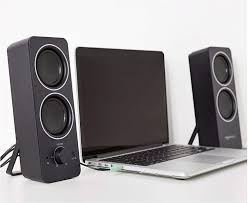
Is your laptop not detecting external speakers? This issue can be frustrating, especially when you need high-quality sound for work, entertainment, or meetings. Fortunately, there are several ways to troubleshoot and fix the problem. In this guide, we will walk you through various solutions to resolve the issue of a laptop not detecting external speakers.
Why is My Laptop Not Detecting External Speakers?
There are several reasons why your laptop is not detecting external speakers, including:
- Loose or faulty connections
- Incorrect sound settings
- Outdated or corrupted audio drivers
- Hardware issues with the speakers or laptop
Let’s go through step-by-step solutions to resolve this issue.
1. Check the Speaker Connection
Before diving into advanced troubleshooting, ensure the external speakers are properly connected:
- For wired speakers: Check if the audio cable is fully plugged into the correct audio-out port (headphone jack or AUX port).
- For Bluetooth speakers: Ensure Bluetooth is turned on and the speakers are in pairing mode.
- For USB speakers: Try connecting them to a different USB port to check for faulty connections.
2. Set External Speakers as the Default Playback Device
Your laptop may still be using its built-in speakers as the default audio output. To fix this:
On Windows:
- Right-click the sound icon in the taskbar.
- Click Sounds and go to the Playback tab.
- Look for your external speakers in the list.
- Select them and click Set as Default.
- Click Apply and OK.
On macOS:
- Click on the Apple menu and select System Preferences.
- Go to Sound > Output.
- Choose your external speakers from the list.
3. Update or Reinstall Audio Drivers
Outdated or corrupted drivers can prevent your laptop from detecting external speakers. Here’s how to update them:
On Windows:
- Press Win + X and select Device Manager.
- Expand Sound, video, and game controllers.
- Right-click your audio driver and select Update driver.
- Choose Search automatically for drivers.
If updating doesn’t work, try uninstalling the driver:
- Right-click the audio driver and select Uninstall device.
- Restart your laptop.
- Windows will reinstall the driver automatically.
On macOS:
macOS updates drivers automatically. If you’re facing issues, update your macOS by going to System Preferences > Software Update.
4. Check the Audio Output Format
If your laptop is not detecting external speakers, it might be due to an incompatible audio format.
On Windows:
- Right-click the sound icon and select Sounds.
- Go to the Playback tab and select your external speakers.
- Click Properties > Advanced.
- Try different sample rates and bit depths.
- Click Apply and OK.
5. Run Windows Troubleshooter
Windows has a built-in troubleshooter that can detect and fix audio problems automatically:
- Go to Settings > Update & Security > Troubleshoot.
- Select Playing Audio and click Run the troubleshooter.
- Follow the on-screen instructions.
6. Restart Your Laptop and Speakers
A simple restart can resolve minor glitches. Turn off your laptop and speakers, wait for a few seconds, then turn them back on.
7. Disable Audio Enhancements
Some audio enhancements may cause conflicts and prevent external speakers from being detected.
On Windows:
- Open Sound settings and go to the Playback tab.
- Select your speakers and click Properties.
- Under the Enhancements tab, check Disable all enhancements.
- Click Apply and OK.
8. Try a Different Pair of Speakers or Headphones
If none of the above solutions work, try connecting a different pair of speakers or headphones. If they work, your original speakers may be faulty.
9. Check for Windows Updates
An outdated operating system may cause sound issues. To check for updates:
- Go to Settings > Update & Security.
- Click Check for updates and install any available updates.
10. Reset Audio Settings
If all else fails, you can reset your audio settings to factory defaults.
On Windows:
- Open Settings > System > Sound.
- Scroll down and click Reset sound devices and volumes.
Conclusion
If your laptop is not detecting external speakers, follow these troubleshooting steps to restore sound output. From checking connections to updating drivers, these solutions can help resolve most audio detection issues.
Need a new laptop with excellent audio performance? Contact Jumuah Industrial Company Limited for high-quality, UK-used laptops at wholesale prices.
Contact Support: SUPPORT TEAM
Location: Ikeja Computer Village
Visit Us Online: SHOP WITH JUMUAH