Fix Software Installation Failed on Laptop

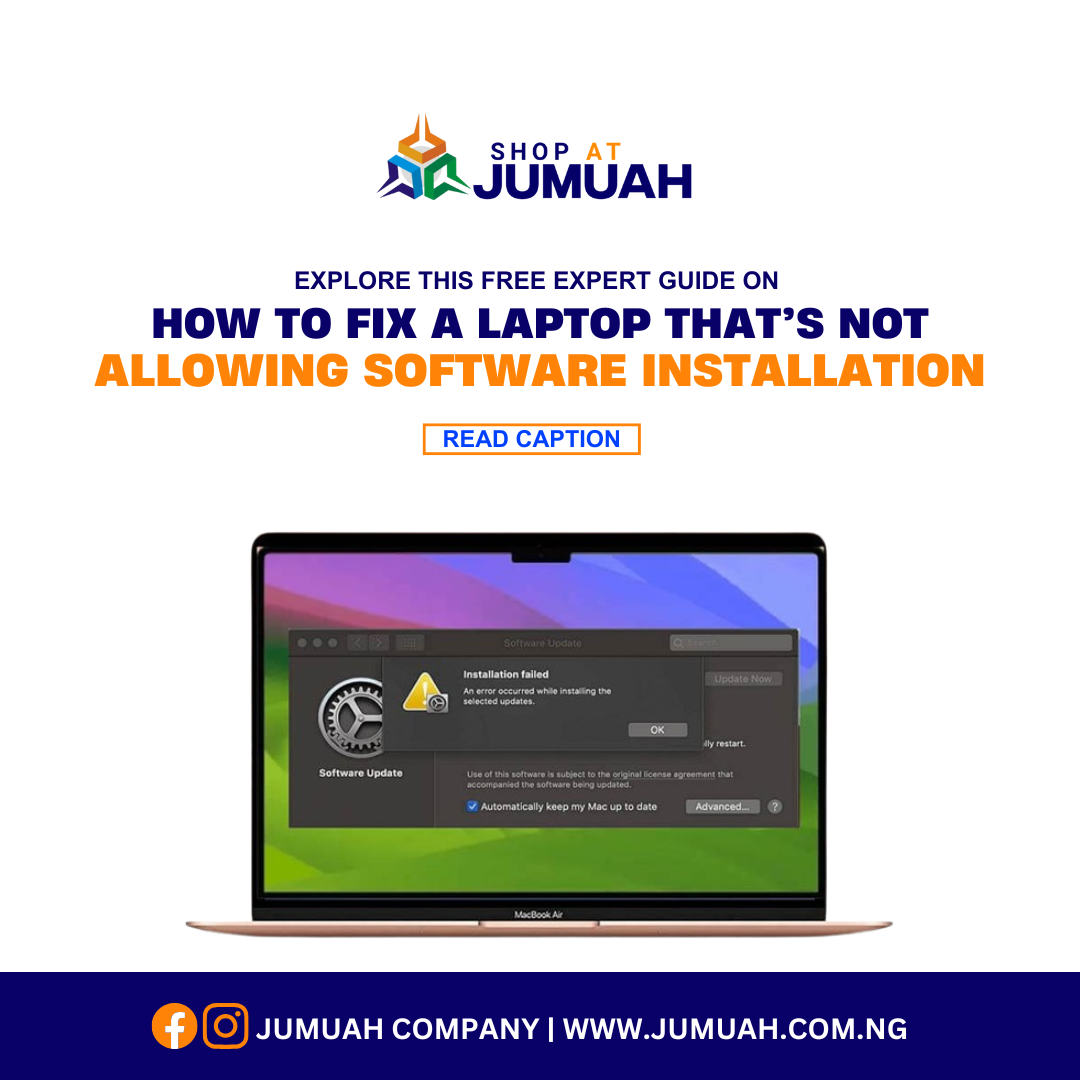
How to Fix a Laptop That’s Not Allowing Software Installation
Fix Software Installation Failed on Laptop
Are you struggling with a laptop that’s not allowing software installation? This can be frustrating, especially when you need to install essential applications for work, school, or entertainment. Various issues, including system settings, security restrictions, or corrupted files, can prevent software installation. In this guide, we will explore the best troubleshooting steps to resolve this problem efficiently.
Why is My Laptop Not Allowing Software Installation?
There are several reasons why your laptop is blocking software installation, including:
- User Account Control (UAC) restrictions
- Insufficient administrative privileges
- Corrupt Windows Installer service
- Antivirus or Windows Defender blocking the installation
- Outdated operating system or software conflicts
- Insufficient storage space
Let’s go through the step-by-step solutions to fix this issue.
1. Check for Administrator Privileges
If you are not logged in as an administrator, your laptop may prevent software installation. To check:
- Press Win + X and select Settings.
- Click Accounts > Your Info.
- Ensure your account is labeled as Administrator.
- If not, log in with an admin account or contact the system administrator.
2. Disable User Account Control (UAC)
User Account Control (UAC) may block software installation. To disable it:
- Press Win + R, type control, and hit Enter.
- Go to User Accounts > Change User Account Control settings.
- Move the slider to Never Notify and click OK.
- Restart your laptop and try installing the software again.
3. Run the Installer as an Administrator
Sometimes, software installers require elevated privileges to run. To do this:
- Right-click on the software setup file.
- Select Run as administrator.
- Follow the on-screen instructions to complete the installation.
4. Disable Antivirus and Windows Defender Temporarily
Your antivirus or Windows Defender may mistakenly block the installation. To temporarily disable it:
On Windows:
- Press Win + I to open Settings.
- Navigate to Update & Security > Windows Security.
- Click Virus & threat protection.
- Under Real-time protection, toggle it Off.
- Try installing the software again.
Remember to re-enable your antivirus after installation to keep your system secure.
5. Check for Storage Space
If your laptop is not allowing software installation, it could be due to insufficient storage.
- Press Win + E to open File Explorer.
- Click on This PC.
- Check if your C: Drive has enough space (at least 10GB free is recommended).
- If necessary, delete unnecessary files or move data to an external drive.
6. Repair the Windows Installer Service
A corrupt Windows Installer can cause software installation errors. To fix it:
- Press Win + R, type services.msc, and hit Enter.
- Scroll down and find Windows Installer.
- Right-click and select Restart.
- If it’s disabled, set Startup Type to Manual, click Apply, and then Start.
7. Install in Compatibility Mode
If you are trying to install an older program, compatibility issues may arise.
- Right-click on the installer file.
- Select Properties > Compatibility.
- Check Run this program in compatibility mode for: and choose an older Windows version.
- Click Apply and OK.
- Run the installer again.
8. Enable Installation from Unknown Sources
Windows may block software from third-party sources. To allow it:
- Go to Settings > Apps > Apps & Features.
- Under Choose where to get apps, select Anywhere.
9. Run Windows Troubleshooter
Windows has a built-in tool to fix software installation issues:
- Open Settings > Update & Security > Troubleshoot.
- Click Additional troubleshooters.
- Select Program Compatibility Troubleshooter and run it.
10. Check for Windows Updates
An outdated system can prevent software from installing. To update Windows:
- Go to Settings > Update & Security > Windows Update.
- Click Check for updates and install any available updates.
Conclusion
If your laptop is not allowing software installation, these troubleshooting steps should help you resolve the issue. From checking admin rights to disabling antivirus and repairing the Windows Installer, these solutions cover various common problems.
Looking for a high-performance laptop that ensures smooth software installations?
Contact Jumuah Industrial Company Limited for high-quality, UK-used laptops at wholesale prices.
Contact Us: Contact Support
Location: 3, Oshitelu Street, Beside Gtbank, Ikeja Computer Village
Visit Us Online: Shop With Jumuah